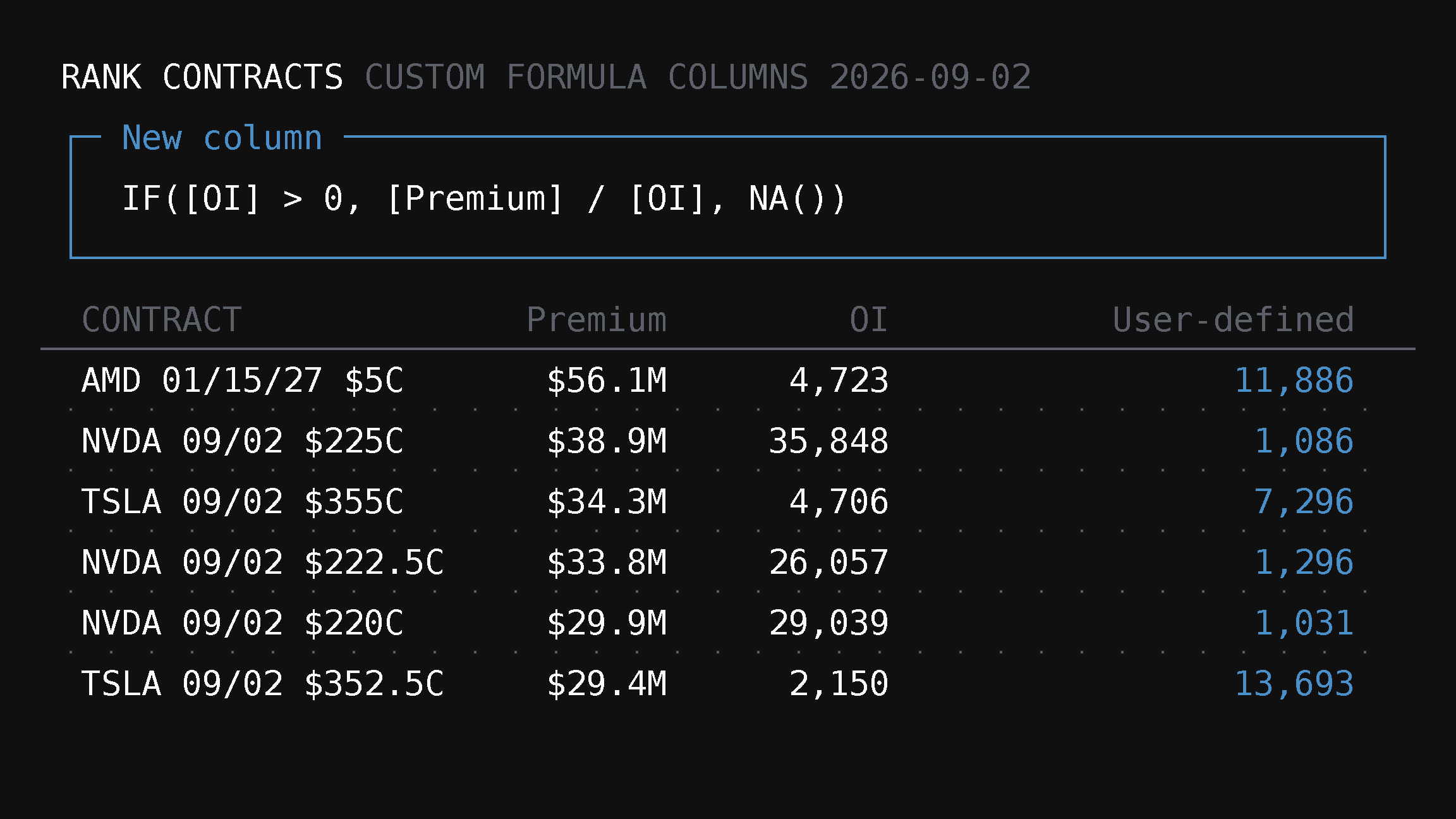
Create custom formula columns in TradingFlow Rank
TradingFlow Rank now lets paid users create row-level numeric columns for Contracts and Symbols, validate them against approved fields, and keep the definitions inside saved views.
Every trader eventually develops a calculation they want beside the standard metrics: premium per unit of open interest, a volatility spread, or a simple liquidity screen. Rank custom formula columns let you build that calculation directly in the table without turning Rank into a spreadsheet or weakening its data rules.
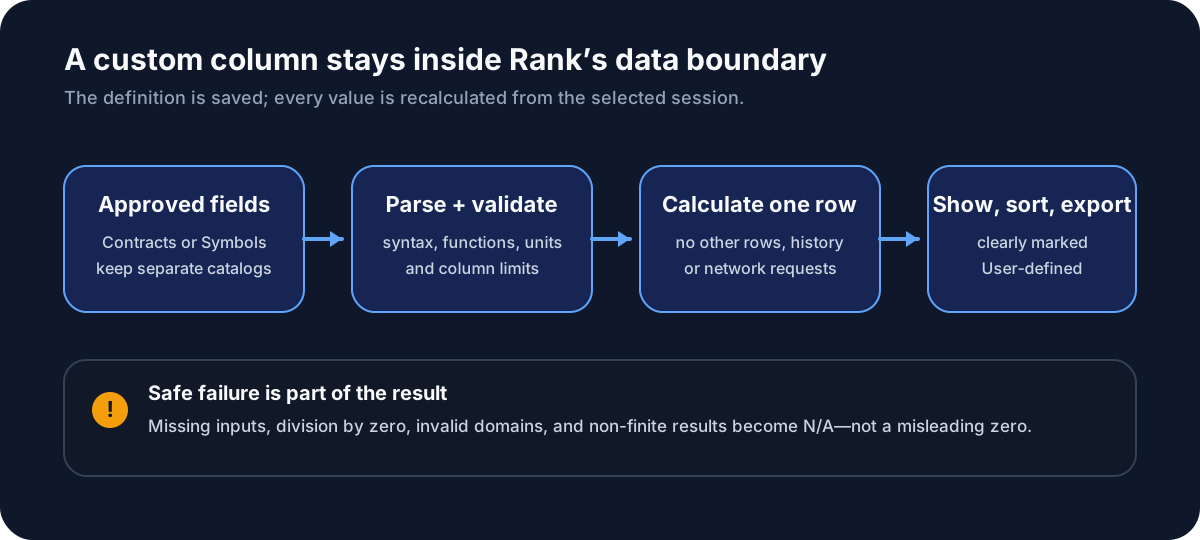
Contracts and Symbols each have their own formula catalog. Your definition saves with the active Rank Saved View, while every displayed value is recalculated from the selected session's canonical rows.
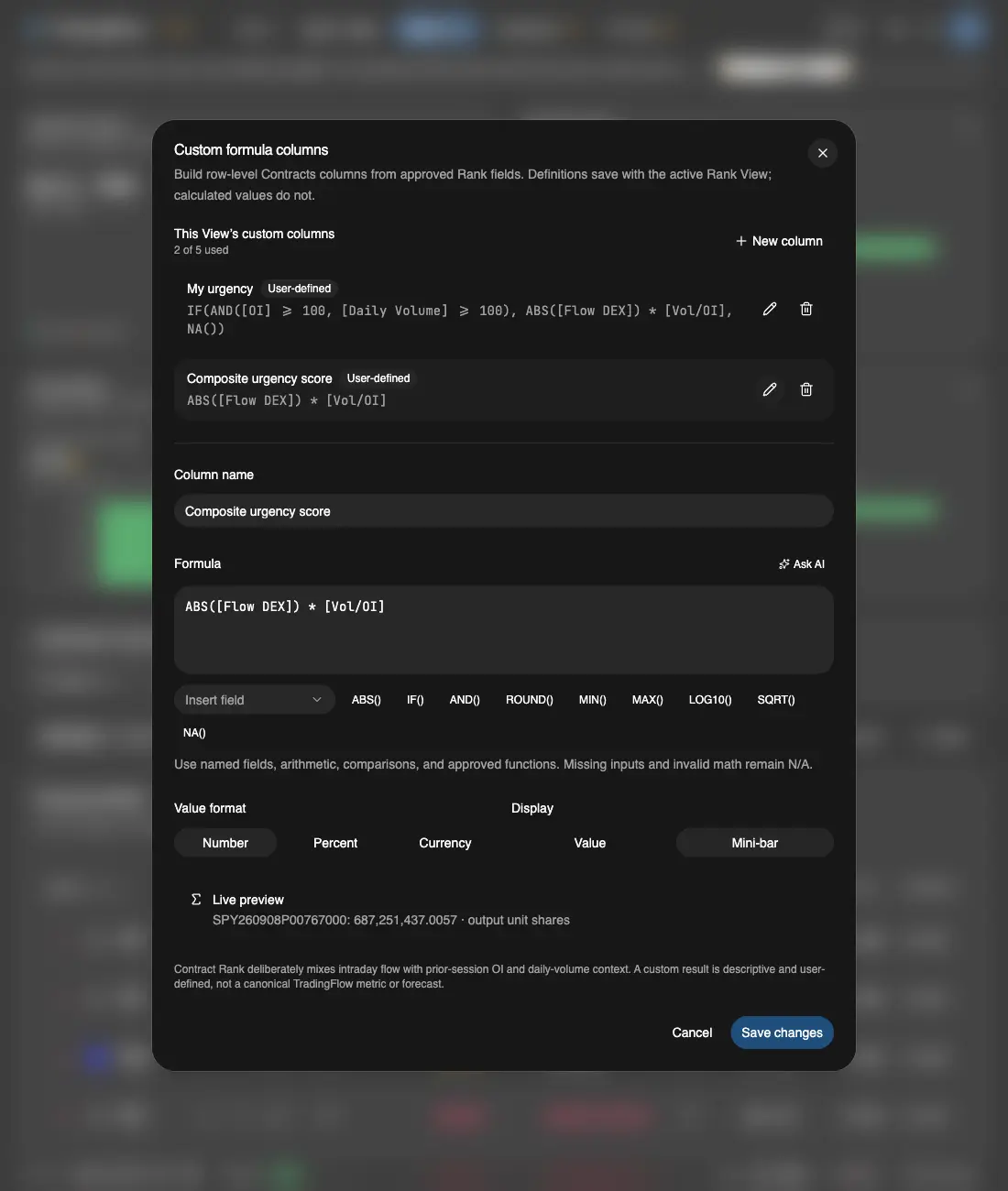
Test app, September 8, 2026: editing an existing Contracts formula. The full editor shows the pencil actions, expression, format, live preview, and Save changes at the bottom right. Market values are illustrative, not forecasts.
Contracts and Symbols have separate formulas
You can create up to five custom numeric columns for Contracts and five separately for Symbols. The field lists stay independent because the two Rank leaves answer different questions:
- Contracts formulas work with row-level fields such as Premium, OI, Daily Volume, Flow DEX, Net DEI, Delta, IV, and Vol/OI.
- Symbols formulas work with full-chain and symbol fields such as IV30, RV20, RV30, Net DEX, premium totals, IV Rank, skew, market cap, and average stock volume.
- A Contracts formula cannot use a Symbols-only field, and neither field list includes categorical values or data available only in a drawer.
That separation preserves the same canonical universes described in the Rank workbench guide: Contracts ranks traded contracts, while Symbols ranks the complete symbol catalog.
Open the custom-column editor
The editor is inside the active Rank table—not in Saved Views. With paid access:
- Open Rank Contracts or Rank Symbols.
- In the table toolbar, select Columns. The control is at the upper right of the active table.
- In the Columns popover, choose Custom columns (0). The number changes as you create columns.
- When the Custom formula columns modal opens, choose New column to open the editor. Existing columns appear in the same modal with edit and delete actions.
The Columns control follows the active Rank tab: Contracts opens the Contracts field list, while Symbols opens the Symbols field list. If Custom columns is not available, check that you are signed in with paid access.
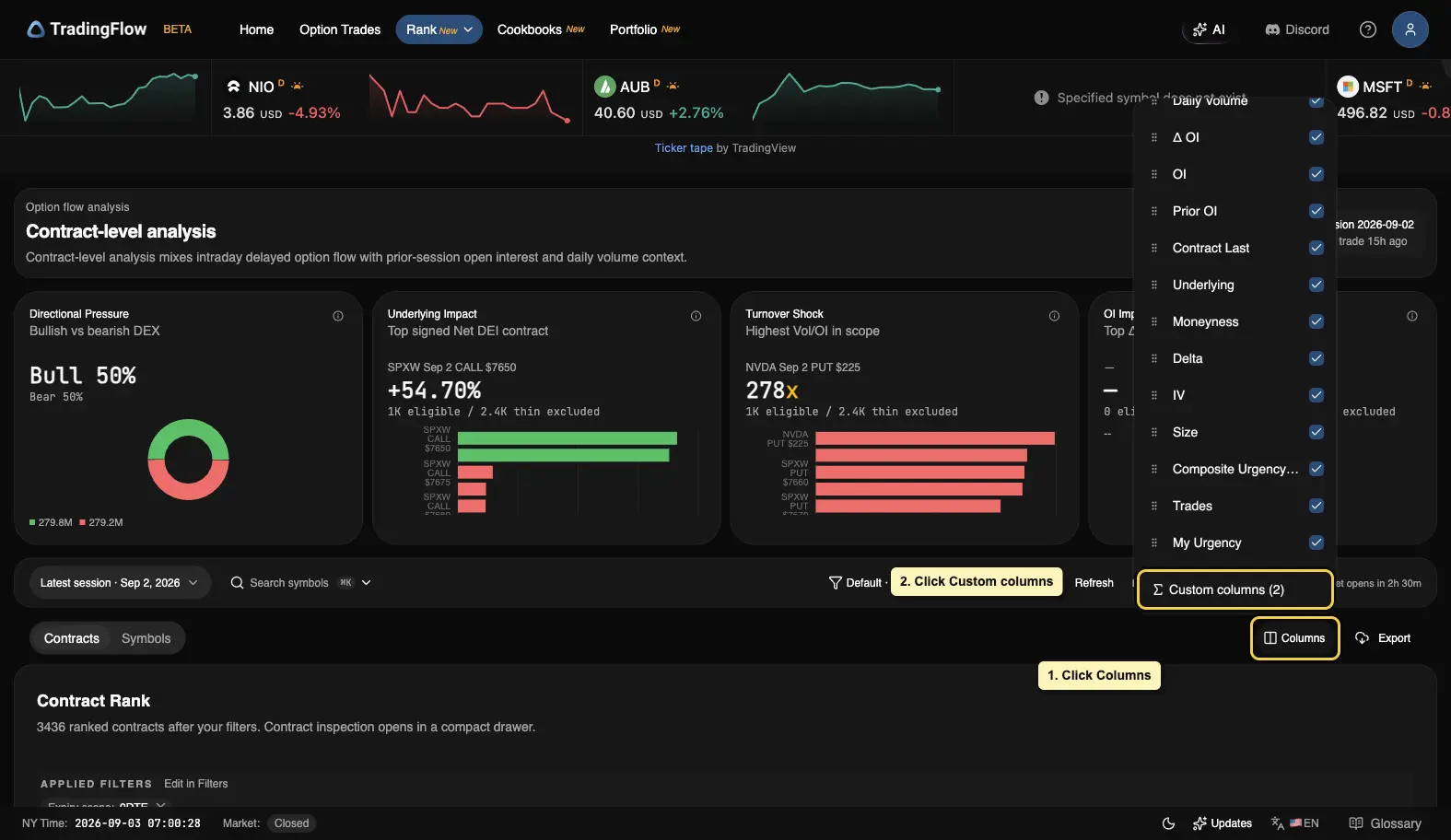 The entry point in the test app: 1. click Columns in the active table toolbar; 2. select Custom columns (count) at the bottom of the popover to open the modal.
Write and preview your formula
The editor supports familiar arithmetic, comparisons, parentheses, and a compact set of numeric functions including ABS, IF, AND, OR, NOT, ROUND, MIN, MAX, LOG10, SQRT, and NA.
For example, this draft calculates Premium per unit of OI and explicitly returns N/A when OI is unavailable or zero:
IF([OI] > 0, [Premium] / [OI], NA())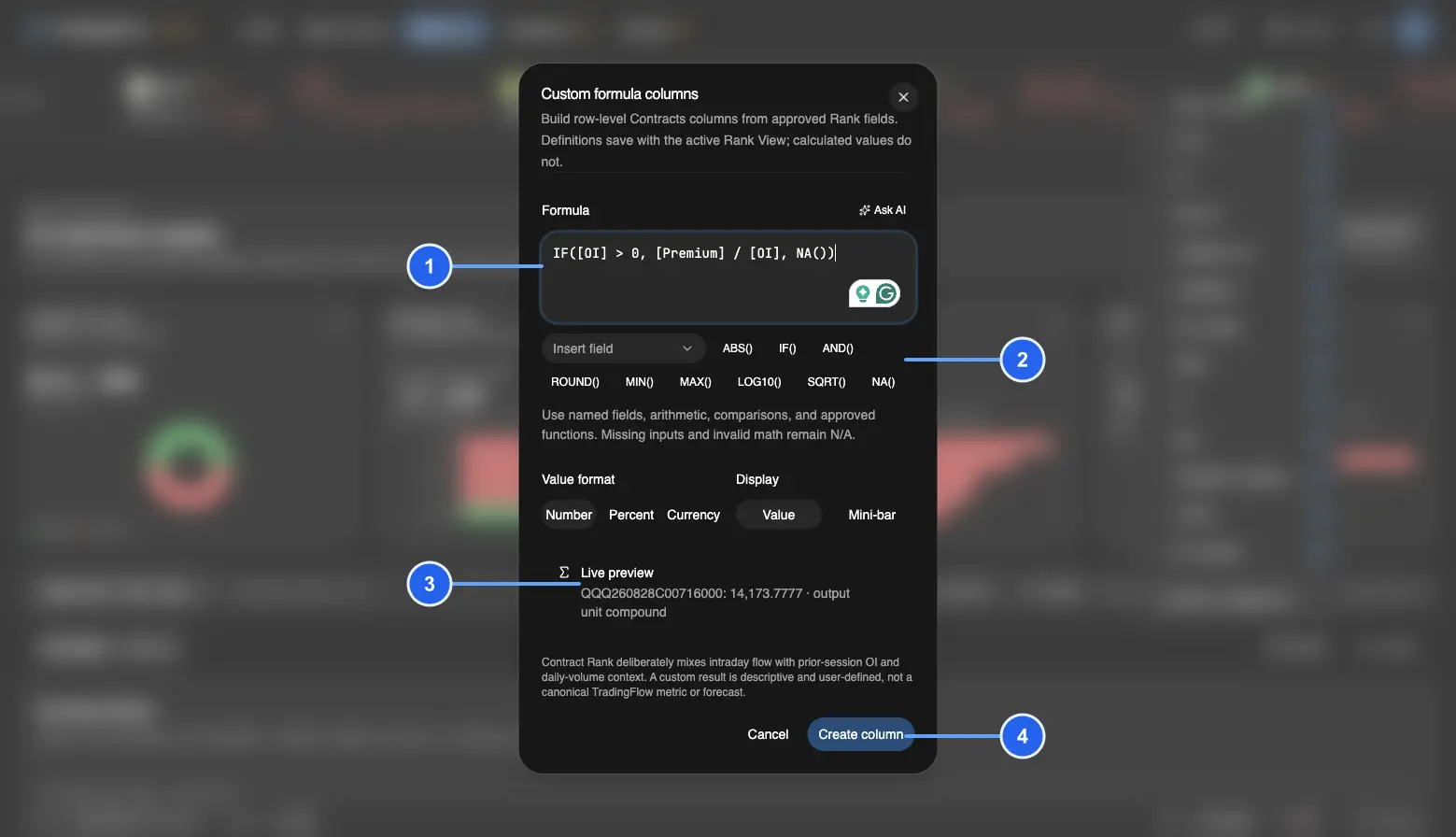
1: the expression uses named fields. 2: the editor exposes only approved fields and functions. 3: a live row preview makes the result inspectable before save. 4: Create column is an explicit user action.
The editor checks syntax, field availability, function arguments, output type, and units before enabling creation. You can choose number, percent, or currency formatting and render the result as a value or a mini-bar. A visible custom header is always marked User-defined, so it cannot masquerade as a canonical TradingFlow metric.
Create a column or save an edit
For a new column, choose New column, enter a unique name and a valid expression, review the preview, then choose Create column at the bottom of the editor. To change an existing column, select its pencil icon, adjust the name, expression, format, or display, and choose Save changes. Typing into the editor alone does not apply the draft.
If the action is disabled, check the validation message, the column name, and any duplicate-name error. Correct the expression or name before saving. A preview of N/A can simply mean that the preview row has missing inputs or invalid math; it does not by itself mean the expression is invalid. Each tab allows five custom columns, so at the limit you can edit an existing column or delete one before adding another.
On a small screen, scroll inside the editor to review the fields and preview; the create/save action is in the bottom action area. If that action is clipped or unreachable, that is a layout problem—not a requirement to save through the Saved Views manager.
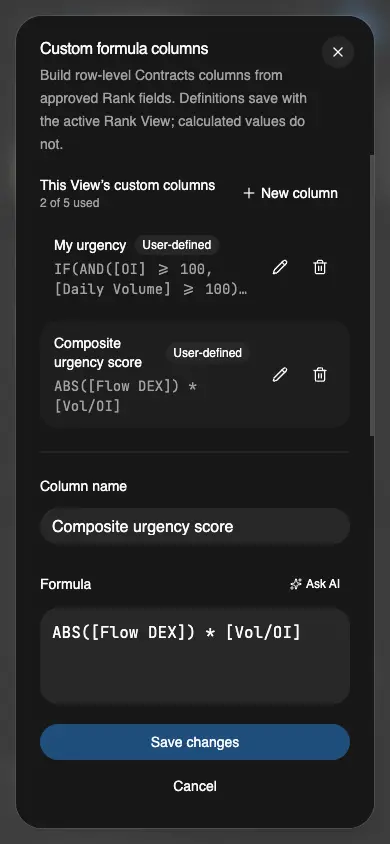
Test app, September 8, 2026, at a 390 × 844 mobile viewport: the form scrolls while Save changes and Cancel remain in the bottom action area.
Know when your changes are saved
Create column and Save changes apply the definition to the active table. TradingFlow then automatically saves it with the active Saved View, including its formatting and display settings. You do not need to create another Saved View after every formula edit.
Check the save status beside the Saved Views control. If it reports Save failed, use Retry and wait for confirmation before relying on a reload to restore the change. The table showing a new value is not, on its own, confirmation that the account save succeeded.
Hiding a column keeps its formula. Reset presentation also keeps formula definitions; removing one requires its separate delete action and confirmation.
What the boundary protects
A Rank formula calculates each row independently using that row's inputs. It cannot execute JavaScript or SQL, call the network, read another row, look back across historical sessions, or change which rows belong in the table. Cross-row aggregation, multi-session research, and full-chain joins remain work for a Cookbook recipe rather than a table formula.
Missing inputs, division by zero, invalid function domains, and non-finite results render N/A and sort after finite values. They never become a misleading zero. Sorting uses all filtered rows, not just the current page, and CSV export receives the calculated values—not an executable spreadsheet formula.
If Contracts temporarily falls back to loading one page of data at a time, custom values remain visible, but custom sorting is unavailable until the full session snapshot recovers. Rank explains this limitation in the table; changing your formula will not fix a data-loading fallback.
The formula definition and display settings are saved; calculated market values are not. Reopening a historical session evaluates the same definition against that session's own retained rows.
Ask AI, then keep the decision
The formula editor includes Ask AI for help drafting or repairing an expression. The assistant receives the selected Rank tab's approved fields and the current draft. Ordinary formula help sends no Rank rows; when you explicitly annotate a formula cell, only that result and its dependency inputs are attached.
AI can return a validated proposal, but it cannot create, save, or delete the column. You choose Use draft, inspect the editor and live preview, and then decide whether to save. Paid access, AI consent, credits, and the normal assistant rollout still apply.
Try the workflow
- Open Rank Contracts or Rank Symbols with paid access.
- In the active table, choose Columns, then Custom columns (count), and New column.
- Name the column, insert approved fields, and write the expression.
- Review validation, unit information, and the live row preview.
- Choose a format and display, then select Create column (or Save changes when editing).
- Confirm the Saved View save succeeds, then sort, show or hide, and export the column. Its definition remains part of the active Saved View.
Custom formulas help you express a repeatable research lens; they do not turn a calculation into a prediction or recommendation. Start from TradingFlow App Home, open Rank, and build the column that matches the question you are actually researching.
Related Articles
Filter GEX wall flow by horizon: All and 0DTE in Rank
Rank Contracts now separates all-expiration and exact-0DTE Wall Flow filters, so paid users can narrow the same-session evidence to the horizon they are researching.
Get your TradingFlow recipes by email every trading day
Pick an official recipe and a time, and TradingFlow emails you a fresh data digest each U.S. trading day.
Connect Claude to TradingFlow without an API key
Claude now signs in to TradingFlow with your TradingFlow account. Add the connector once, then ask about live options flow from claude.ai, Claude Desktop, mobile, Cowork, or Claude Code without copying a key.