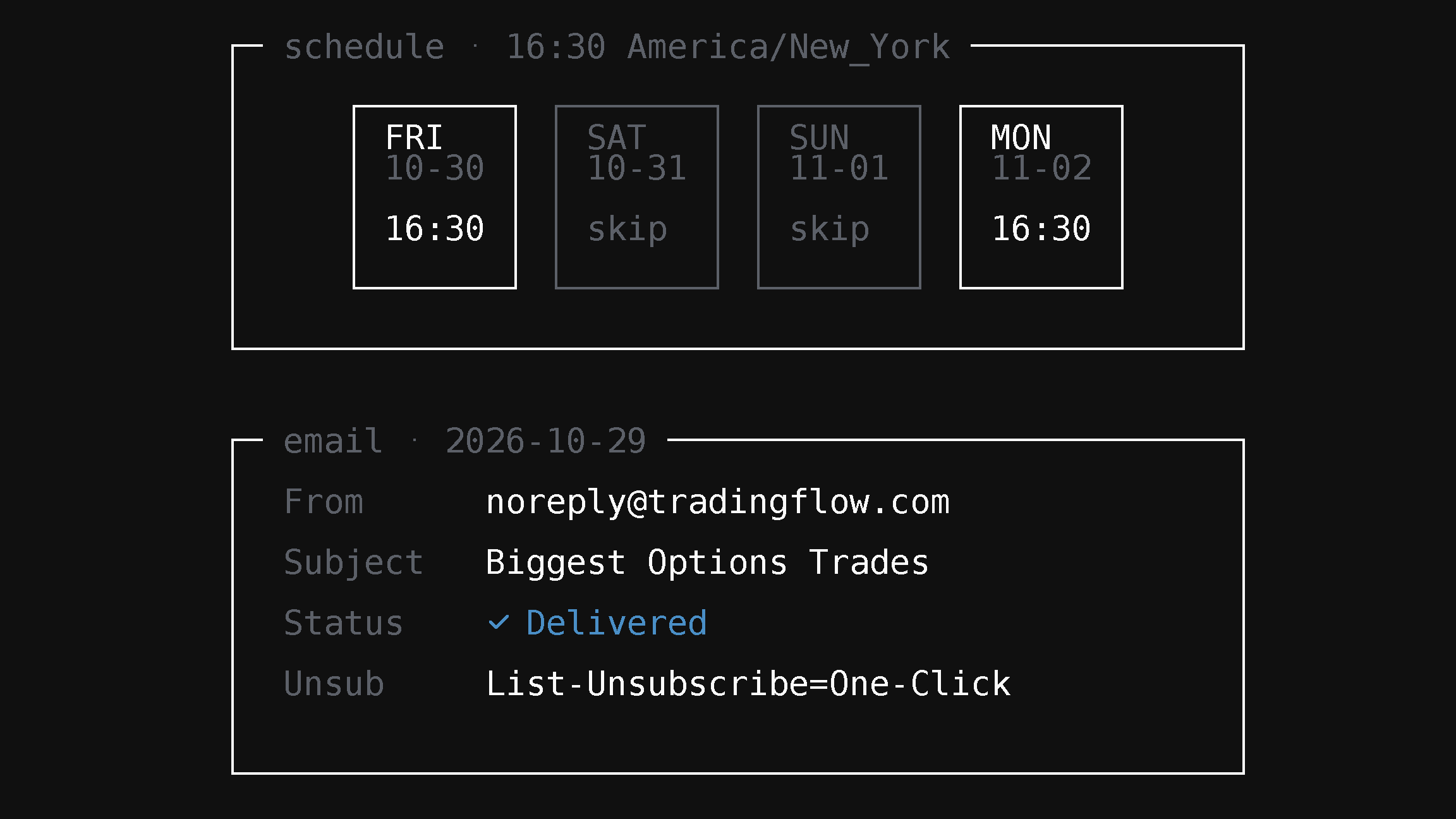
Get your TradingFlow recipes by email every trading day
Pick an official recipe and a time, and TradingFlow emails you a fresh data digest each U.S. trading day.
Some reports are worth reading every session. At the time you choose, TradingFlow runs the recipe on the latest market data and emails you a compact digest: the key numbers and tables, a disclaimer, and a link back to the full recipe. Scheduled runs use no AI credits.
Open it in TradingFlow: Settings → Scheduled deliveries.
What you need
- A paid TradingFlow plan. Access is checked again before every run. If the plan has lapsed, that day's delivery is skipped, and Settings says so with a link to Billing.
- Up to 10 schedules per account.
- Email goes to your account address only.
Create a schedule
1. Choose New…. In Settings, find Scheduled deliveries and choose New….
2. Pick a recipe. You can schedule any official recipe that runs without parameters. Recipes that need a symbol or another input are listed as unavailable.
3. Set the time. Choose a delivery time and timezone. The timezone starts as your browser's. The local time stays the same through daylight-saving changes.
4. Choose Email. The digest goes to your account address.
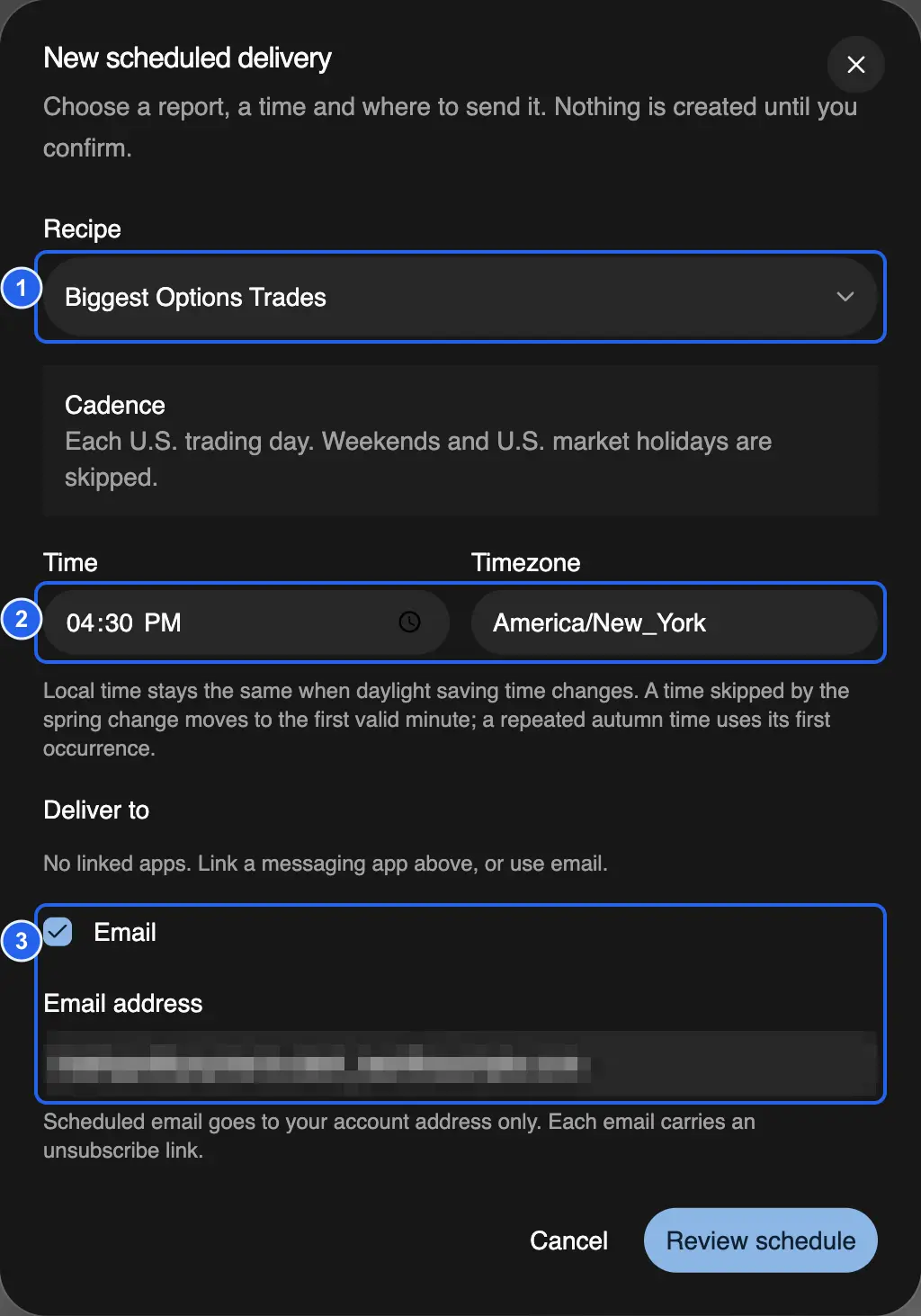
Test app, October 30, 2026; the account address is pixelated. 1: the recipe. 2: the delivery time and its timezone. 3: email to the account address.
Review before you create
Choose Review schedule. The review shows the next delivery in your timezone and in UTC, and the trading days after it. It also explains what each run does. Nothing is created until you choose Create active schedule.
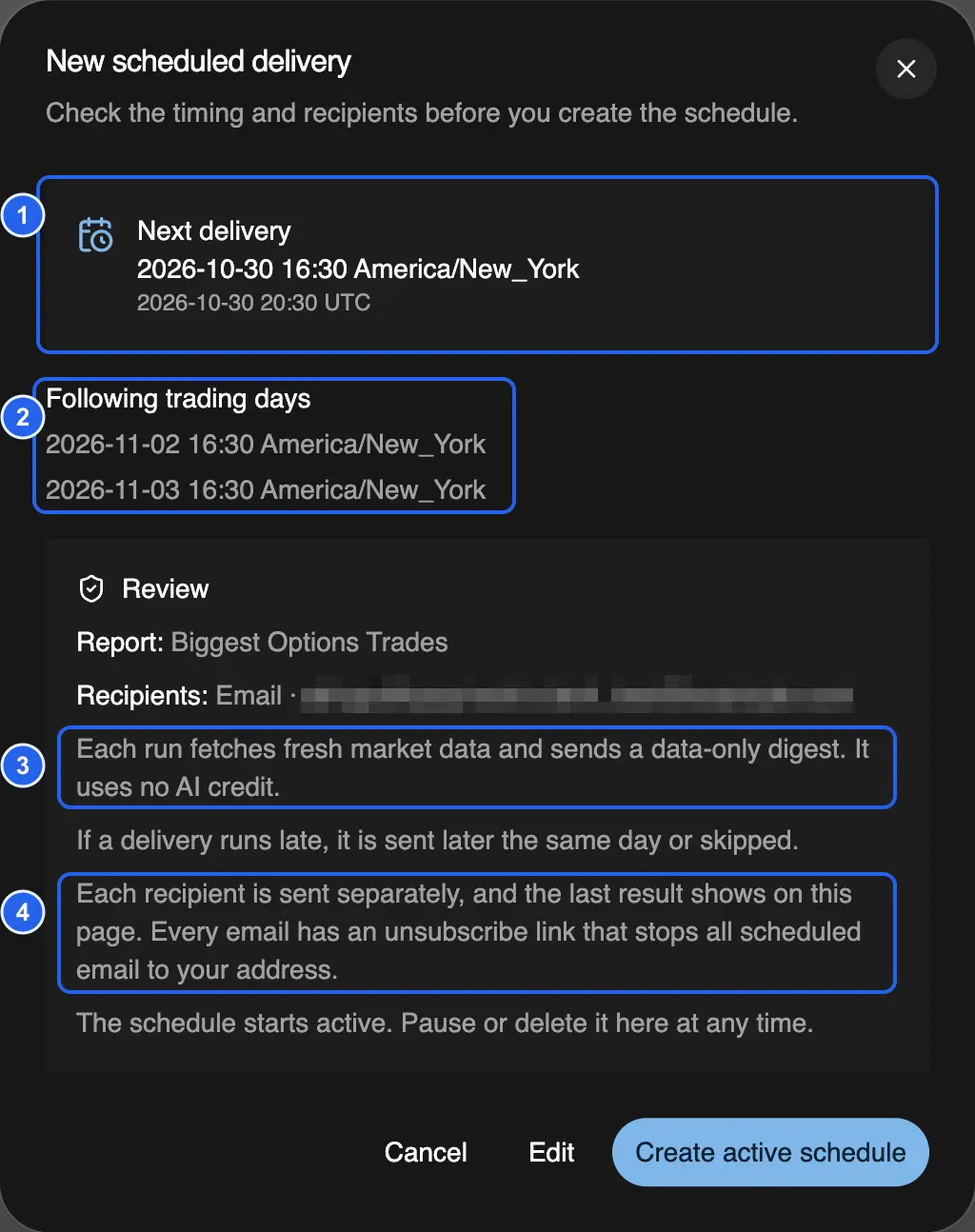
Test app, Friday, October 30, 2026; the account address is pixelated. 1: the next delivery, in New York time and UTC. 2: the following trading days; Saturday and Sunday are skipped, so Monday comes next. 3: each run fetches fresh data and uses no AI credit. 4: every email carries an unsubscribe link.
Pause, resume, or delete
The schedule appears in Settings with its next delivery and an Active badge.
- Pause stops deliveries until you choose Resume.
- Delete asks you to confirm, then stops all future deliveries.
- After the first run, the schedule also shows how its latest delivery went: delivered, partly delivered, not sent (with the reason), or skipped because the subscription is inactive.
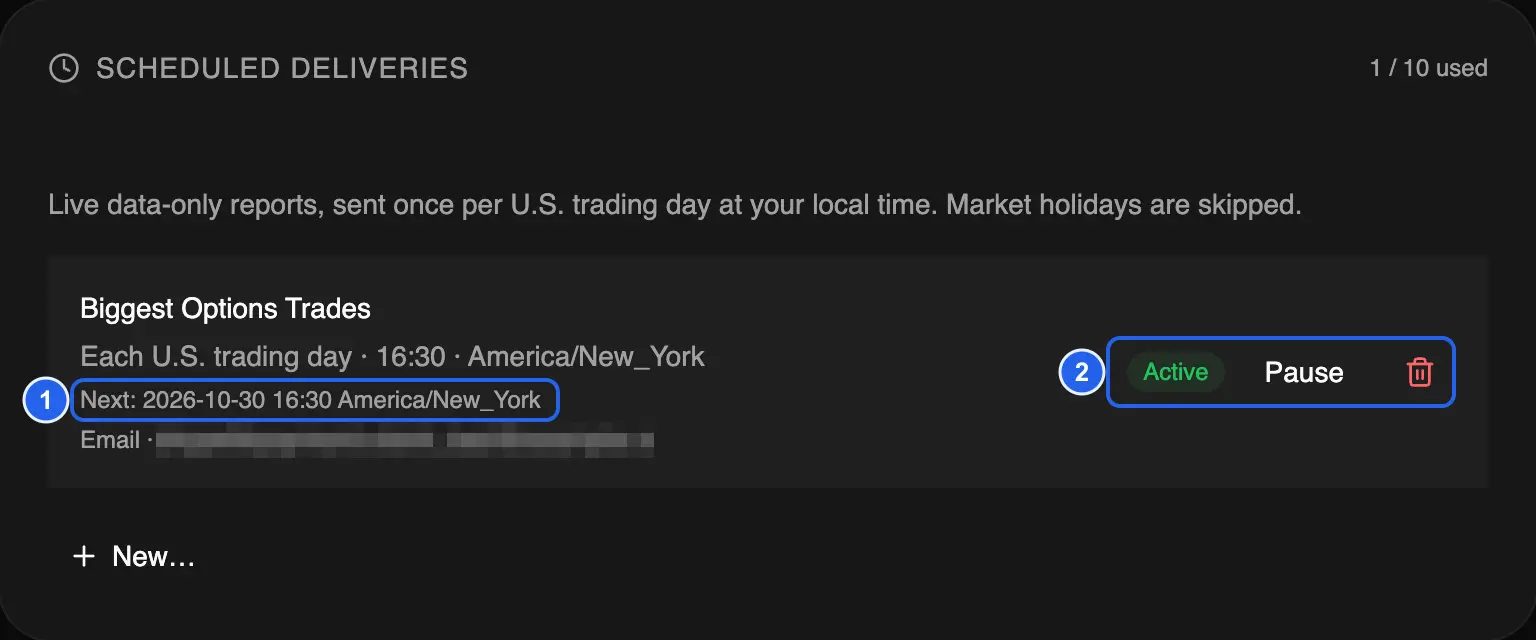
Test app, October 30, 2026; the account address is pixelated. 1: the next delivery. 2: the Active badge, Pause, and Delete.
What arrives
- One email per trading day, from
noreply@tradingflow.com, titled with the recipe and the date, for example "Biggest Options Trades — 2026-10-29". - The recipe's key numbers and tables, a disclaimer, and a link that opens the full recipe in TradingFlow.
- Nothing on weekends or U.S. market holidays. A delivery that runs late is sent later the same day or skipped, never on a later day.
- An unsubscribe link in every email. Opening it shows a confirmation page. Confirming there, or using your mail app's one-click unsubscribe, stops scheduled email to your address; a schedule left with no recipients is paused. To receive it again, create a new schedule in Settings.
Recipes to start with
Any official recipe without parameters can be scheduled. A few that suit a daily email:
- Biggest Options Trades
- Daily Market Recap
- Daily Option Flow — The Tape
- Most Active Options
- Market-Wide Flow Breadth
Open a recipe first to see what its digest will contain, then schedule it from Settings.
Scheduled digests report market data; they are not investment advice or trade recommendations. Start from TradingFlow App Home.
Related Articles
Connect Claude to TradingFlow without an API key
Claude now signs in to TradingFlow with your TradingFlow account. Add the connector once, then ask about live options flow from claude.ai, Claude Desktop, mobile, Cowork, or Claude Code without copying a key.
Create custom formula columns in TradingFlow Rank
TradingFlow Rank now lets paid users create row-level numeric columns for Contracts and Symbols, validate them against approved fields, and keep the definitions inside saved views.
Filter GEX wall flow by horizon: All and 0DTE in Rank
Rank Contracts now separates all-expiration and exact-0DTE Wall Flow filters, so paid users can narrow the same-session evidence to the horizon they are researching.