Watchlists & Filters
Use watchlists to follow only the names you care about, and filters to narrow any view to exactly the flow you want to see.
TradingFlow shows a lot of activity at once. Watchlists and Filters are the two tools that help you cut through it and focus. They work the same way across Option Trades, Rank Contracts, and Rank Symbols, so once you learn them on one screen you know them everywhere.
- A watchlist is your personal list of tickers — think "my portfolio" or "stocks I'm tracking this week." Apply it to scope a view down to just those names.
- A filter is a set of screening rules — calls vs. puts, premium size, sentiment, activity type, and more — that narrows a view to the kind of flow you want.
If you're brand new, start with Getting Started first, then come back here to learn how to focus.
Watchlists
Find a symbol with ticker search
Every screen has a ticker search box. Type a symbol (for example, AAPL) and pick it from the results. Search is built on official symbol reference data, so the names you find are real, correctly identified stocks and ETFs. Search is available broadly — you don't have to be signed in just to look something up.
Build your personal list
- Signed-in users can keep multiple watchlists, with exactly one marked as the default. The default is the list TradingFlow falls back to when it needs an "active" list.
- Guests (not signed in) get a single temporary list that is not saved between visits. To keep your lists across sessions, sign in.
To add a symbol, use the save-to-watchlist action — the heart icon you'll see in tables and detail views. Tapping the heart adds or removes that ticker from your list.
Apply a watchlist to scope the view
Adding a symbol to a list and filtering the screen by it are two different things. Once you've built a list, apply it to scope the current view so the table shows only those symbols. This works consistently everywhere — the rows, the summary metrics, the live feed, all of it respect the applied watchlist.
Heart vs. "filter by this" — why they're separate
In tables you'll notice three distinct, side-by-side actions for a symbol, and they are kept deliberately separate so nothing happens by surprise:
- Save to watchlist (the heart) — adds/removes the ticker from your list. It does not change what's on screen.
- Filter by this symbol — scopes the view to just that one ticker, right now.
- See details — opens the drill-down panel for a closer look.
This separation means saving a name for later never accidentally narrows your screen, and filtering to a name never accidentally edits your saved list.
One scope at a time
Watchlist scoping and single-symbol filtering are mutually exclusive — only one can scope a page at a time, never both. If you apply a watchlist and then filter to a single ticker, the single ticker takes over; switch back and your watchlist scope returns. This keeps it always clear exactly which names you're looking at.
Note: A watchlist is identified by the plain ticker (like
AAPL); extra detail such as the exchange is just supporting context. Applying a watchlist is a paid feature on the data screens, because it reshapes the view away from the free public preview. Also, if your applied watchlist is empty, the screen shows no rows rather than silently widening back to everything.
Filters
Filters live in a single, unified Filter View dialog, opened from the Filters control at the top of the screen.
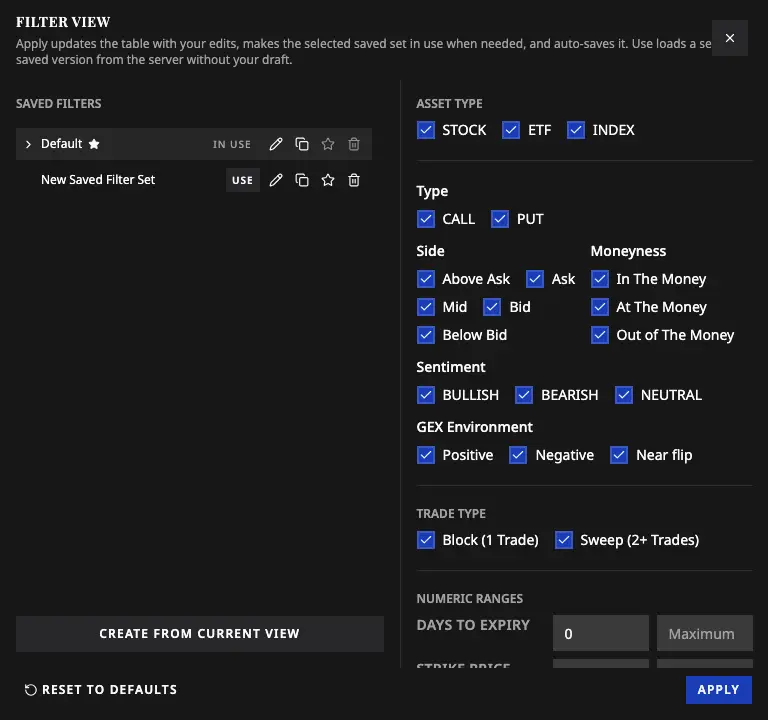 The Filter View dialog on Option Trades. Edits here are staged as a draft until you press Apply.
Draft now, commit on Apply
The Filter View is built as "draft then commit" so your in-progress edits are never saved by accident:
- Changes you make in the dialog are staged — nothing on the live screen changes yet.
- Pressing Apply commits your edits, refreshes the data, and makes that the active view.
- Closing the dialog without applying (the close button, clicking away, or pressing Esc) quietly discards your unapplied edits. Next time it reopens from your last committed state.
- Reset to defaults re-stages the editor back to the shipped factory settings; it only takes effect once you press Apply.
Saved Filter Sets
A Saved Filter Set is a named, reusable view that remembers your filters (and, where applicable, your column layout and sort order). This is a paid feature:
- Paid users can keep several saved sets and name them.
- Exactly one is marked the default — it's what the app loads with when nothing else is specified.
- The default can't be deleted, and the last remaining set can't be deleted; to remove a default, first promote another set to default.
- The Filters control is labeled with the name of the set you're currently using, so you always know which view is live.
What's saved vs. session-only
Some things are deliberately session-only and reset rather than persist, because they describe a momentary research action rather than a saved view:
| Saved with your view | Session-only (resets) |
|---|---|
| Calls/puts, sentiment, premium size, activity type, and other screening filters | The chosen date range |
| Column layout and sort order (where supported) | The chosen time range |
| Your default watchlist preference | A typed-in symbol and the current page number |
Filters are a paid action on premium screens
Everyone can see a genuinely useful public preview of each tool. But applying custom filters (and custom sorting, watchlist scoping, exports, and live data) is paid only on the Rank screens and on Option Trades. Unpaid users see the filter controls — sometimes they can even press Apply to sample the preview — but the screen always returns to the fixed public preview. To learn what's free versus paid on each surface, see the individual chapters for Option Trades, Rank Contracts, and Rank Symbols.
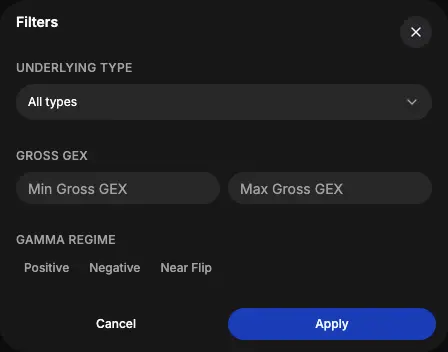 The same draft-then-Apply filter pattern on Rank Symbols — the focusing tools behave the same way across every surface.
How to watch only your portfolio names across tools
Here's the practical recipe most traders want:
- Sign in so your lists are saved.
- Search each of your holdings and tap the heart to add them to a watchlist (make it your default if you want it to load automatically).
- On any screen — Option Trades, Rank Contracts, or Rank Symbols — apply that watchlist to scope the view to just your names.
- Add filters on top if you want to narrow further (for example, only large-premium call buying), then Apply, and save it as a named Filter Set for next time.
Now every tool shows only the flow that matters to you, and your setup is one click away on your next visit.
What to do next
You now know how to focus any view. Next, dive into the concepts behind what you're filtering — calls vs. puts, sentiment, and unusual activity — in Options & Flow Concepts.
Try it live: Option Trades · Rank Contracts · Rank Symbols