Using Option Trades (the live tape)
A hands-on walkthrough of the Option Trades flow feed — Live vs Historical modes, the shared controls, reading a trade row column by column, saved views, and alerts.
Option Trades is your live-and-historical "flow feed" — the tape where options trades stream in as they happen, and where you can dig back through past days to research what was traded and where the money went. Think of it as a professional trading desk in your browser: you dial in your filters and columns, save those as named views, and watch the flow arrive in real time.
Open it at Option Trades. The screen lands on the Live view by default.
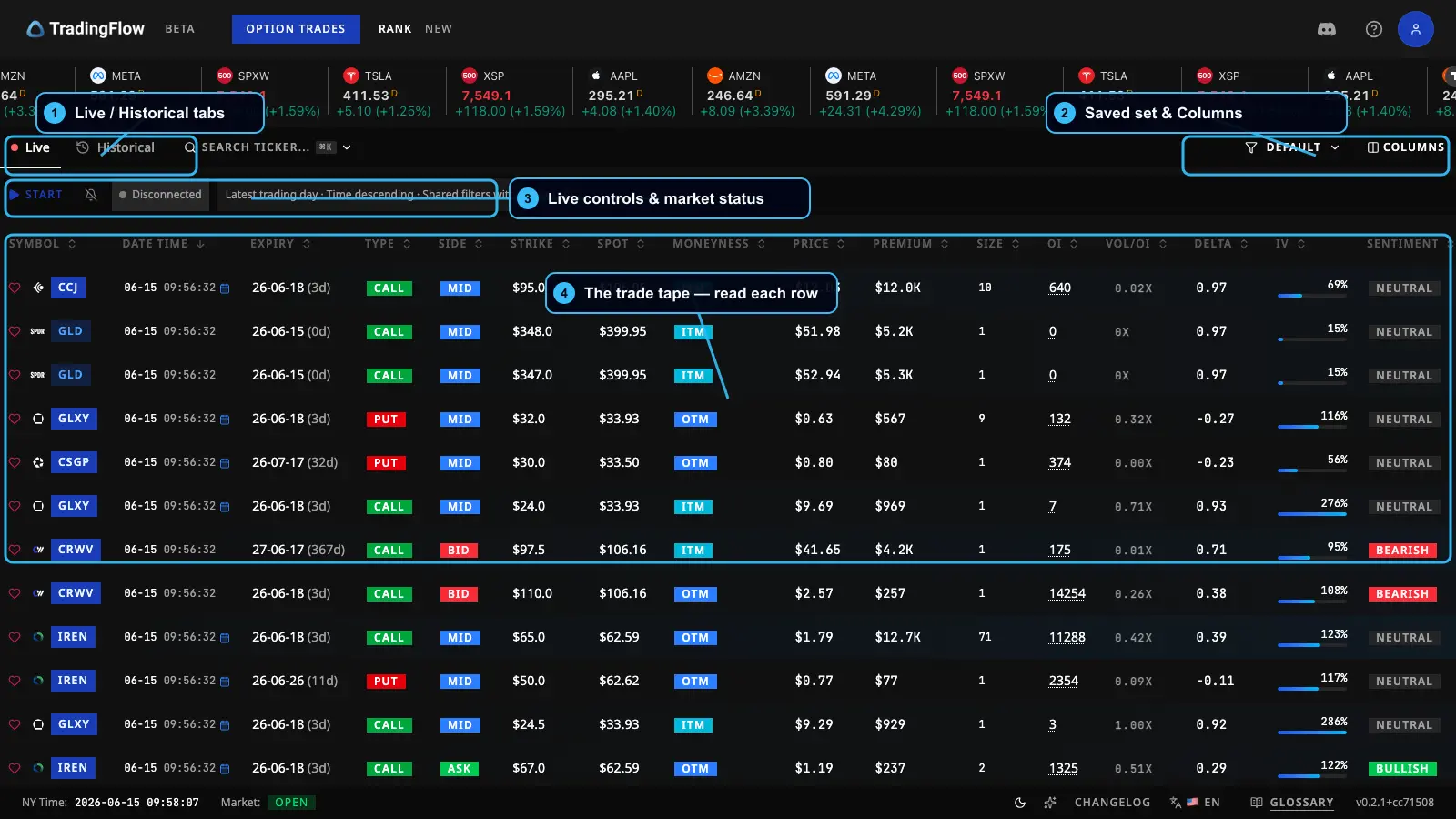 The Option Trades Live view: tabs, controls, and the streaming trade table.
Legend:
- Live / Historical tabs — switch between the streaming feed and the researchable past-days view.
- Saved filter set + Columns — pick which named view drives the screen, and choose which columns to show.
- Live controls & market status — Start / Pause / Resume / Reconnect the stream, plus a connection and market-hours indicator.
- The trade table — one row per trade (or per aggregated block), newest at the top.
Live vs Historical: which do I want?
Both modes share one set of filters — your calls-vs-puts, premium size, sentiment, and so on stay consistent as you move between them. The difference is simply when you're looking.
- Live mode — the latest trading day, updating continuously. New trades land at the top of the feed as they print. The real-time stream is a paid feature and runs during U.S. market hours; everyone else (and paid users when the market is closed) still sees the latest snapshot, just without live updates.
- Historical mode — a paginated, date-and-time-controlled view of past activity, with sorting and a composition summary strip above the table. This is where you research what already happened.
Switching tabs is instant and never loses your place — it doesn't reload the screen or silently re-run your search. New data only loads when you deliberately ask for it (refreshing history, applying a filter change, choosing a saved view, scoping to a watchlist, or starting the live feed).
The shared control row
Across the top of both modes sits one control row:
- Live / Historical tabs — your mode switch.
- Symbol search — type a ticker to focus on one underlying, or apply a watchlist to scope the feed to a set of names.
- Saved Filter Sets and Filters — both open the same Filters dialog (more below). The Filters control is labeled with the name of the view currently driving the screen, so you always know what's active.
- Columns — choose and arrange which columns the table shows.
- Export — download your results. This lives on Historical only (Live has no export) and is a paid feature.
Each mode then adds its own extras below the row: Live adds the Start / Pause / Resume / Reconnect controls and a connection status; Historical adds Refresh and the Date range and Time range pickers (with their own Apply / Revert).
Reading a trade row, column by column
Each row is one trade — or, in aggregated mode, one rolled-up block. Here's how to read it left to right, grouped from identity (what was traded) to economics (how big) to signal (what it might mean).
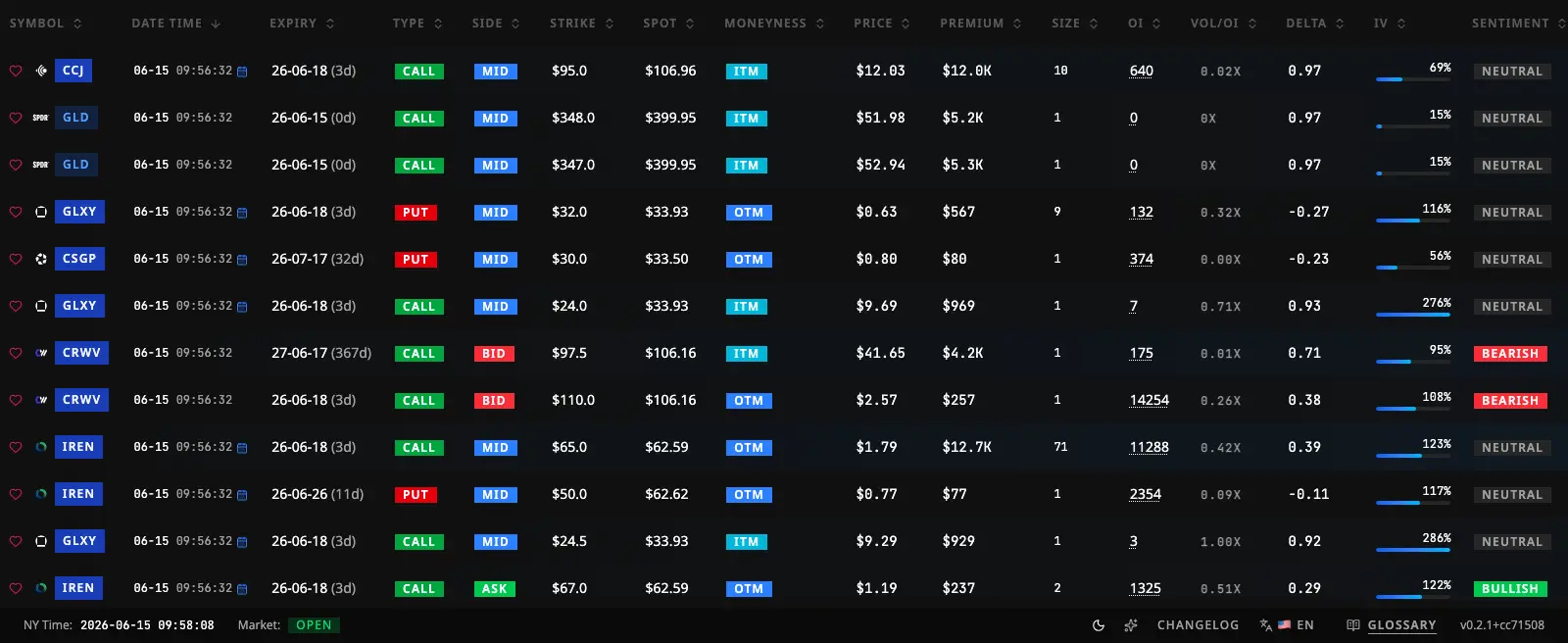 A close-up of the trade table columns.
Identity — what was traded:
- Symbol — the underlying ticker.
- Type — call or put.
- Side — where the trade printed relative to the bid-ask spread (at the ask, mid, bid, etc.), which is how we infer who was the aggressor. See Options & Flow Concepts.
- Strike — the contract's strike price.
- Spot — the underlying's price at the time of the trade. If the data feed didn't provide a price, it's shown as not provided rather than guessed.
- Moneyness — in-, at-, or out-of-the-money versus spot. Defined in Options & Flow Concepts.
Economics — how big:
- Premium — the total dollars behind the trade. Large premium is the headline "size" number.
- Size — the number of contracts.
- OI (Open Interest) — how many contracts of this exact option are outstanding. See Option Chain & OI.
- Vol/OI — today's volume relative to open interest; a high ratio flags an unusually active contract. Defined in Option Chain & OI.
Signal — what it might mean:
- Delta and IV (implied volatility) — the contract's directional sensitivity and pricing of expected movement. See Greeks & GEX.
- Sentiment — bullish, bearish, or neutral, derived from type and side. See Options & Flow Concepts.
- Score — a summary read on how notable the trade is.
Example: how to find unusual call buying
- Open the Filters dialog and set Type to calls only.
- Set Sentiment to bullish (this catches buyers crossing the spread to pay up).
- Add a minimum Premium so you only see meaningful size.
- Add a minimum Vol/OI to surface contracts trading far above their existing open interest — a classic unusual-activity tell.
- Press Apply, then watch them arrive in Live, or switch to Historical to see who was buying over the past few days.
Saved views: draft, then commit
You edit filters inside one Filters dialog. The behavior is deliberately "draft then commit" so an in-progress edit never sneaks onto your screen by accident.
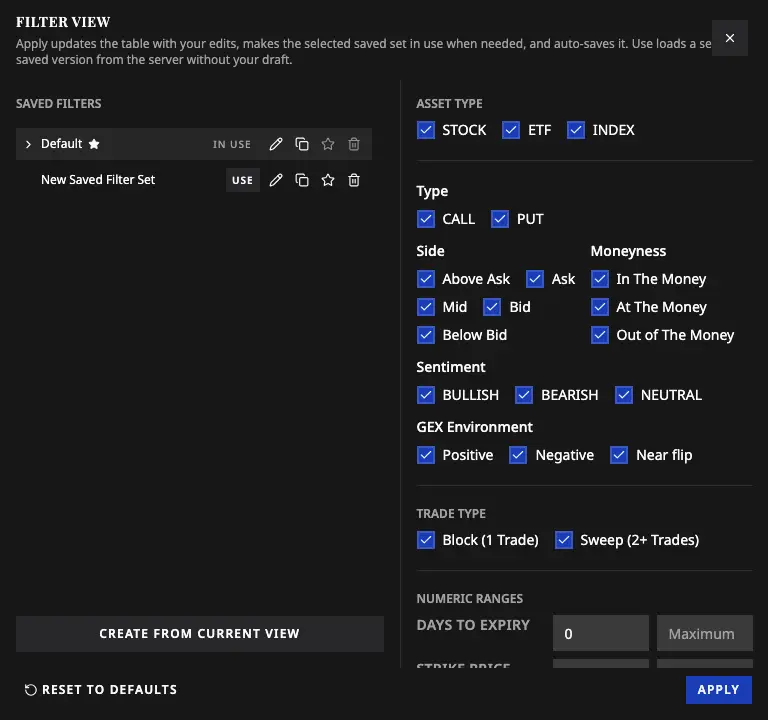 The Filters dialog, where you stage filter changes before applying them.
- Your edits are staged — nothing changes on the live screen until you press Apply.
- Apply commits the edits, refreshes the data, makes that view the active one, and quietly auto-saves the change.
- Choosing Use on a different saved set loads that set's stored configuration and discards any unapplied edits.
- Closing the dialog without applying silently throws away the unapplied edits — you reopen later from the last committed state.
- Column layout, sort order, and page size commit immediately and auto-save — they're not part of the staged draft.
- A few things are deliberately session-only and never saved: the date range, the time range, the typed symbol, and the current page number. These describe a momentary research action, so they reset rather than persist.
A Saved Filter Set is a named, reusable view that captures your filters, column layout, historical sort, and page size. Paid users can keep several; exactly one is the default the app falls back to. Creating, renaming, duplicating, deleting, changing the default, or overwriting saved sets are all paid features. A chip strip below the table summarizes exactly which criteria are currently applied.
Desktop alerts (paid)
In Live mode you can opt into desktop notifications for trades that match your active filters, toggled by the bell control. A few promises keep them trustworthy:
- Alerts fire only for trades that already passed the same filtering as your visible feed — you're never alerted on something you wouldn't see.
- The alert preference is independent of the stream — starting, pausing, or reconnecting Live never silently changes it.
- If your browser blocks notifications, the bell shows a disabled state and the preference stays off, while Live keeps running.
Desktop alerts are a paid feature.
The freemium boundary, plainly
Guests and signed-in unpaid users always see a single, fixed public preview of the feed. The filter and sort controls are visible but disabled, with a hint explaining the upgrade — the screen never ambushes you with a forced sign-in or paywall popup. You can see the latest Live snapshot, but not the real-time stream, and you can't export.
Paid users get the full workstation: the live stream during market hours, custom filters and sorting, watchlist scoping, multiple saved views that persist across sessions, column management, export on Historical, advanced filters and metrics (including the GEX-environment filter — see Greeks & GEX), historical OI context, and desktop alerts.
What to do next
Now that you can read and filter the tape, learn how to save and reuse your screens in Watchlists & Filters, or jump to the ranked leaderboards in Rank Contracts and Rank Symbols — both can hand off "show me the flow behind this" straight into Option Trades.