
Using Rank: Contracts
Discover the standout option contracts in today's flow with the Rank workbench Contracts view, save the view you build, and hand off to Option Trades for the full tape.
When you want to answer one simple question — "what is the standout contract activity right now?" — the Rank workbench's Contracts view is where you start. It ranks individual option contracts across the whole trading session so the most interesting action floats to the top, and it gives you a one-click path into Option Trades when you want to dig in.
Open it any time at Rank Contracts. Rank opens to this Contracts view by default.
How discovery flows
The whole point of Rank is to move you from a broad scan down to a single contract you trust, then into deeper research without rebuilding anything by hand.
How Rank surfaces standoutsEach contract is a column whose height is its score — they grow, re-sort by rank, then #1 is handed to Option Trades.
The Contracts view at a glance
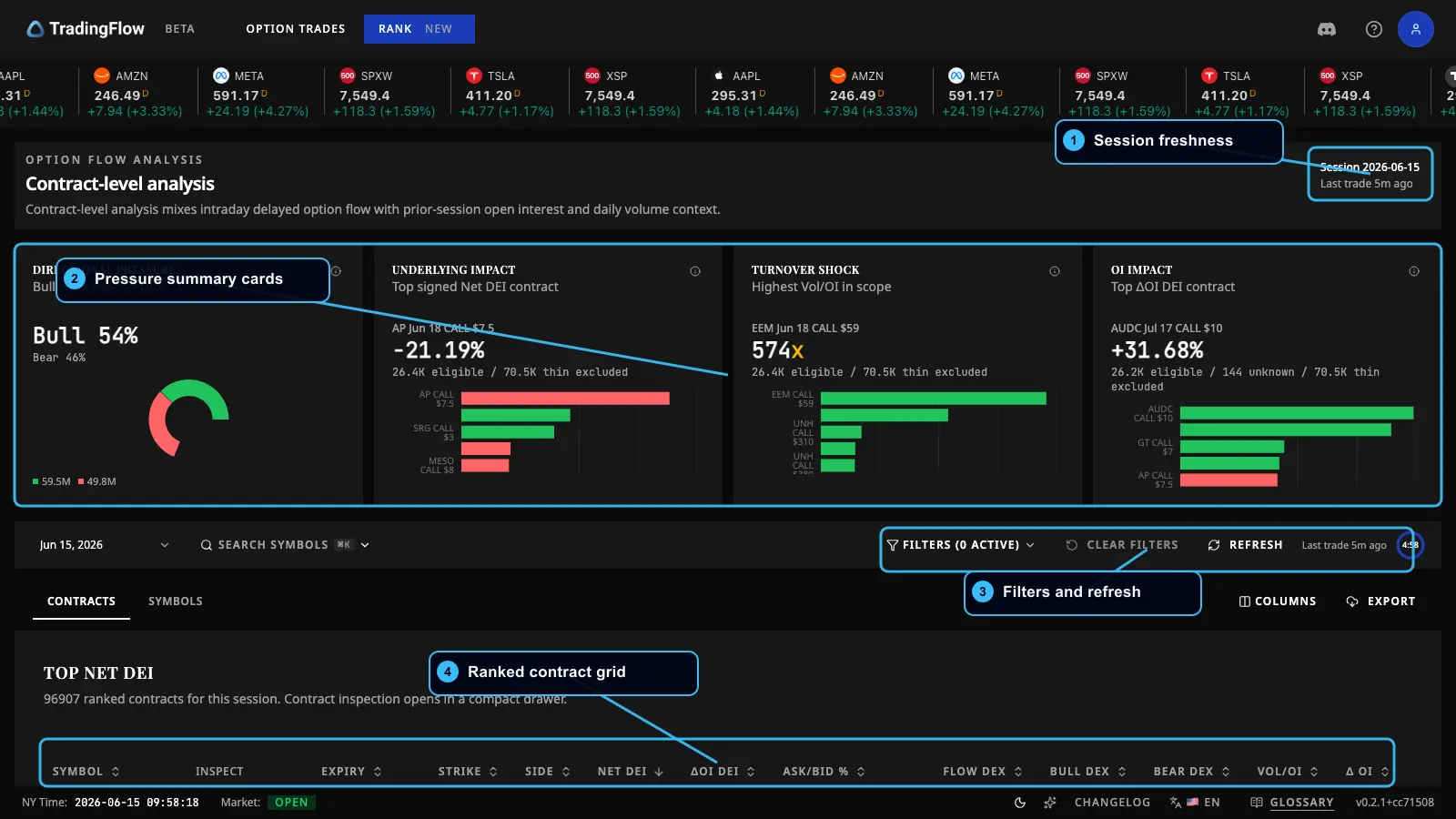 The Contracts view: session and Saved Views controls, the brief cards, and the ranked grid.
- Session and Saved Views control — which trading session you're looking at (
__latest__or a historical date you've picked), plus the named view currently driving filters and columns. - Pressure summary cards — the Contract Opportunity Brief (explained below).
- Filters and refresh — narrow the list and control updates (paid).
- Ranked contract grid — the leaderboard of individual contracts.
You always re-rank the whole session
Rank never shows you "leftovers." When you sort, filter, or page, you are re-ranking the complete regular trading session for the day — not reshuffling a pre-filtered scrap. That is the core trust promise of the surface: what you see is genuinely "the top contracts given these conditions," every time.
Two things to keep in mind about freshness:
- Live (latest session) is the default. Before the market opens, and on weekends or holidays, "latest" simply means the most recent completed session — so the list is never empty.
- Automatic live updates are a paid feature, available only on the latest session during market hours. Outside market hours you will see a countdown to the next open instead.
The Contract Opportunity Brief
Above the table sits a set of at-a-glance cards that summarize your currently filtered view — they always reflect your active filters and scope, never a stale slice. Think of each card as answering a different trader's question.
The Contract Opportunity BriefFour at-a-glance cards over your filtered view — each answers a different trader's question.
- Directional Pressure — the bullish-vs-bearish share of the directional flow across the filtered set. A quick read on which side is in control.
- Underlying Impact (Net DEI) — the contracts whose directional flow is largest relative to the name's typical volume, shown with both size and direction. This is how you compare a small name and a giant name fairly. See Delta Exposure (DEX).
- Turnover Shock (Vol/OI) — the contracts with the highest Vol/OI: how much traded today versus how much was already outstanding. A high ratio flags unusually fresh, concentrated activity.
- OI Impact (ΔOI DEI) — the contracts with the strongest open-interest-change impact, again with size and direction. This points to where real positions are being opened or closed.
Two honesty guardrails worth knowing:
- The "leader" cards apply a minimum liquidity bar, so near-zero-liquidity contracts cannot dominate the highlights with extreme-looking but meaningless numbers. Each card shows how many contracts qualified versus how many were excluded as too thin — the filtering is never hidden.
- Impact cards never add raw exposure across different symbols; they compare normalized, per-name impact, so the numbers stay meaningful.
The ranked contract grid
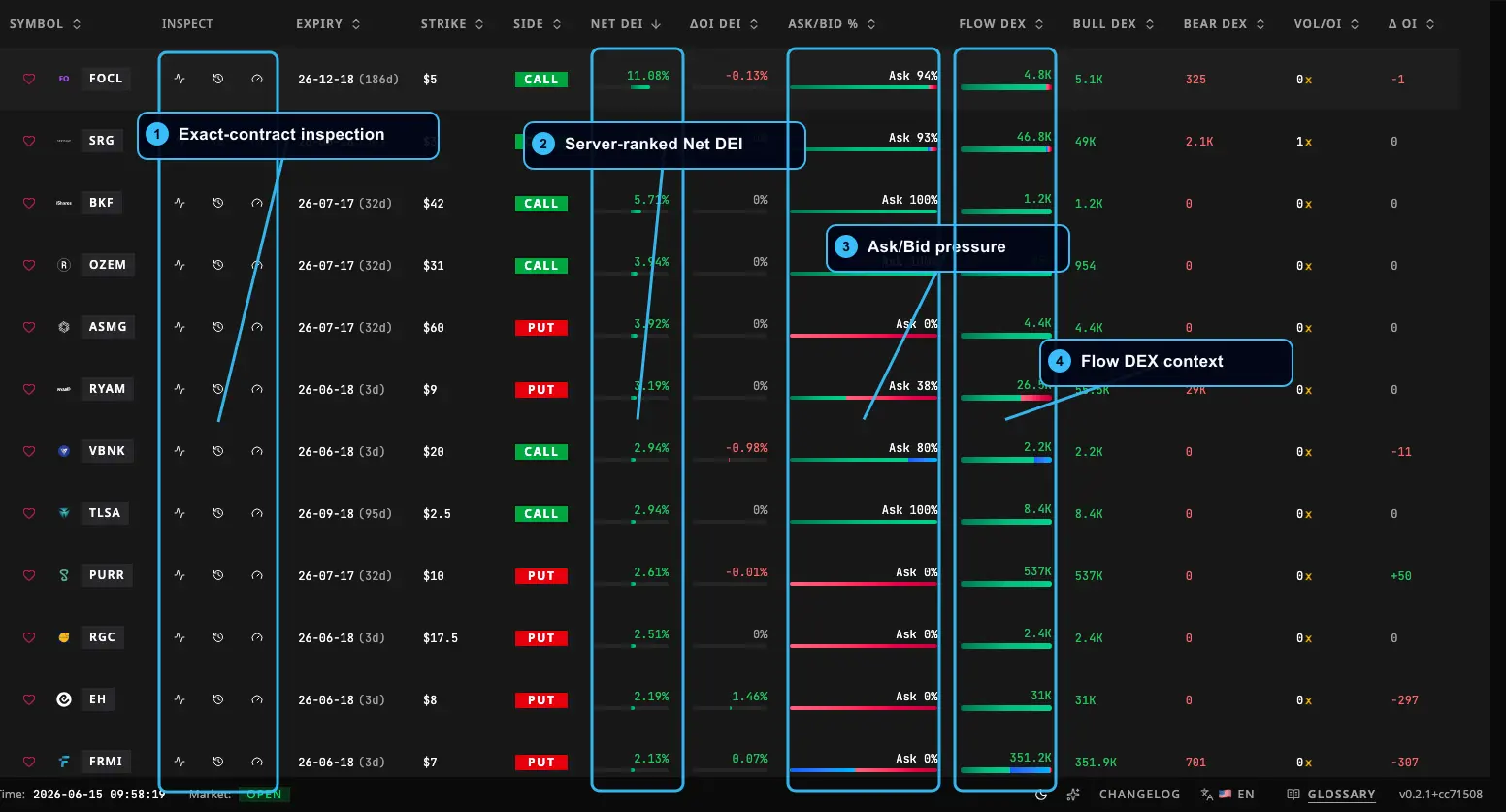 The leaderboard is "trader-first": the headline impact signal leads from the left, then direction, then turnover, positioning, and structure, then price context.
The columns are ordered so the most useful signal reads first: headline impact, then direction, then turnover and positioning, then structure and price context. Forensic and reference columns (extra exposure legs, premium legs, prior open interest, raw size, trade count, last trade time, and more) ship hidden by default and are one click away.
One structural column worth defining: GEX Context combines the symbol's gamma regime with this contract's side and how far out-of-the-money it is, into a plain label like Positive · OTM call or Negative · OTM put. It is not per-strike gamma, a price target, or a directional forecast — it is descriptive context for reading the contract, the same way GEX Environment is descriptive context for reading the symbol. Rows near the money or in an unclear regime are left untagged rather than forced into a label.
What you can do here:
- Page through the list — free for everyone.
- Sort by any column — click any visible column header to re-rank. Sorting is a paid feature (paging is not).
- Apply narrowing filters — by symbol, put/call, an expiry window or an exact expiration date, strike, moneyness, and minimum thresholds for activity size. Filters are paid. Expiry is exclusive: pick a preset window or an exact date, not both.
- Scope to a single symbol or a watchlist — paid; see Watchlists and Filters.
- Pick a specific trading date instead of only the latest session — covered in Saved Views and historical sessions below.
- Show, hide, and reorder columns, and save the result — also covered below.
- Export the current view to a spreadsheet — paid, and it mirrors exactly what is on screen.
Saved Views and historical sessions
Two capabilities carry across both Rank tabs at once — a filter/column setup you build on Contracts is available on Symbols too, and vice versa.
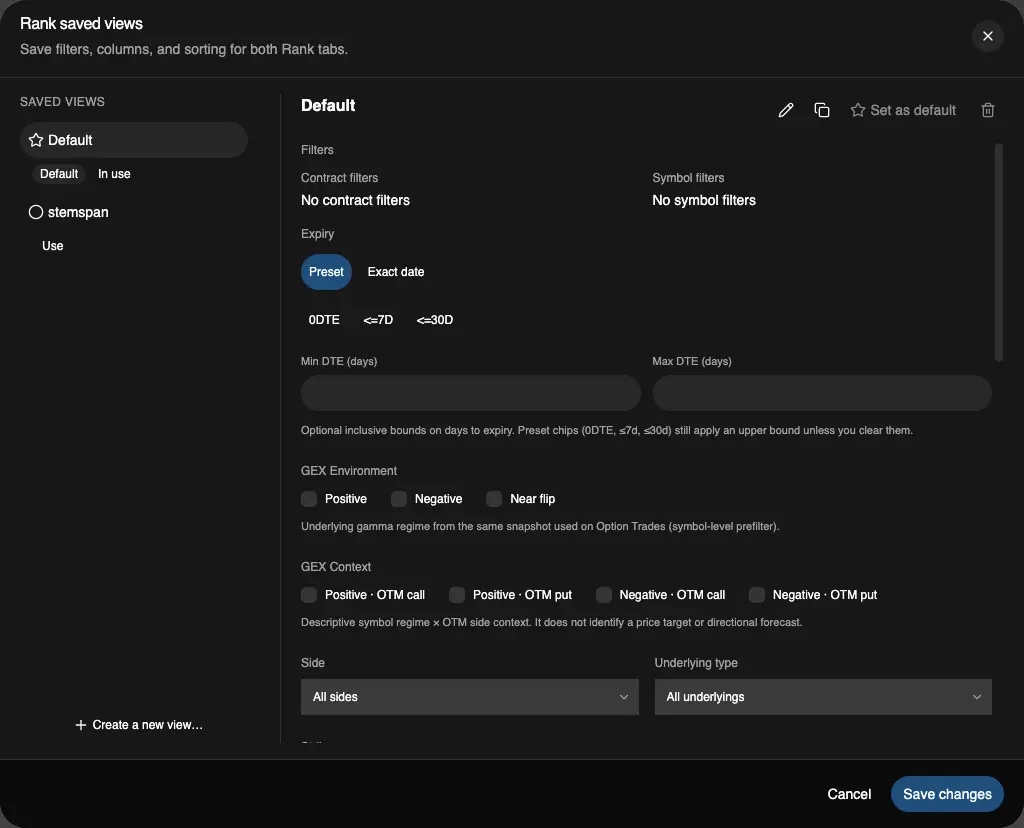 The Rank saved views dialog, opened from the toolbar. One view stores filters plus column layout and sort order for both Contracts and Symbols together.
Saved Views are a paid, account-owned convenience for returning to a reusable analytical and presentation setup:
- A view stores your filters, plus column order, visibility, and sorter for both tabs — but not your trading-date selection or symbol/watchlist scope, which are runtime choices rather than saved-view data.
- Exactly one view is marked Default (what a fresh paid session loads); a separate badge marks whichever view is In use for your current session — these can be different views.
- Changing filters, columns, or sort shows an Unsaved changes indicator with a Save changes button. The manager dialog also offers Create a new view…, plus Rename, Duplicate, Set as default, and Delete on any existing view. You can keep up to 20 uniquely named views.
- Reset filters clears only your draft filters; Reset presentation returns columns to the all-visible default and the sort to Net DEI descending. Neither touches your saved views.
Historical sessions: instead of only the latest session (__latest__), a paid user can open the session control and pick any date retained by both of Rank's data sources — the selector only offers dates that both Contracts and Symbols can actually load. A historical session is settled: it doesn't auto-refresh, and it stays selected as you move between Contracts and Symbols, so you can compare the same exact day from both angles. If a date you requested is no longer available, Rank keeps that date visible along with Retry and Go to Latest buttons — it never silently swaps in a different session.
A note on mixed horizons
The ranked list deliberately blends two time horizons, and it is important you read it correctly:
- Recent flow — the intraday (slightly delayed) options activity that drives the ranking.
- Prior context — structural figures like open interest and daily volume, taken from the most recent available snapshot rather than the exact instant of each trade.
So a row is not purely real-time and not purely end-of-day. The view always makes this mixed nature explicit. Treat day-over-day open-interest change (ΔOI) as a recent-snapshot comparison, not a tick-by-tick figure.
For a beginner, a ranked row becomes useful only after three questions:
| Question | Where to check |
|---|---|
| Is the contract truly unusual? | Vol/OI, premium, liquidity-qualified opportunity cards. |
| Is the direction clear? | Sentiment, Net DEX, ask-side versus bid-side flow. |
| Is the position likely fresh? | ΔOI / OI context now, then next-day OI confirmation. |
If you cannot answer those questions, the correct action is to keep researching rather than treating the rank as a signal.
Inspecting one contract
Click any row to open the contract inspection drawer. The drawer shell is free for everyone as a preview; the deep content inside the panels is paid. You can also share a direct link straight to a specific contract opened to a preferred tab.
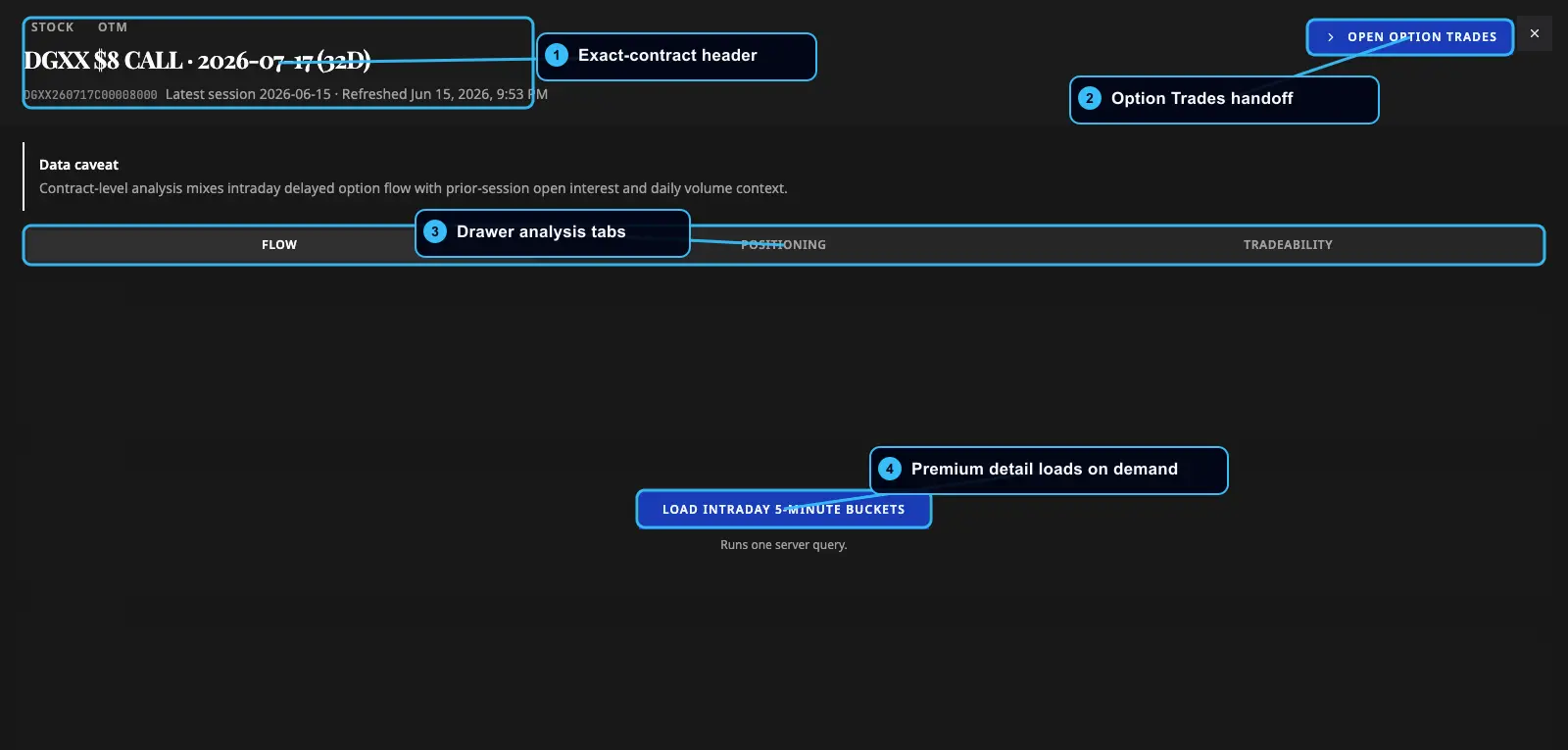 The drawer identifies the exact contract, offers a one-click handoff to Option Trades, and organizes evidence into tabs.
- Exact-contract header — the precise contract you are inspecting (symbol, date, put/call, expiration, strike), plus Ask AI (opens TradingFlow AI grounded in this contract) and Select (point at a specific card or chart to ask about it).
- Option Trades handoff — one click to carry this exact contract into Option Trades (paid).
- Drawer analysis tabs — Flow, Positioning, and Tradeability (described below).
- Premium detail on demand — the rich panel content unlocks for paid users.
The three tabs each answer a different validation question:
- Flow (default) — "Is this flow real, and is it opening?" Shows intraday flow in short time buckets (size, directional exposure, premium), a session-read of the day's character, and the underlying price line for context. The price line is sampled at trade prints, so it is intentionally gappy. Ambiguous mid-market ("neutral") flow is surfaced as a conviction caveat, not treated as a third direction.
- Positioning (day-over-day) — open interest over time, day-over-day change, paired bullish/bearish exposure, and a per-day table.
- Tradeability — the contract's structural snapshot: open interest, prior open interest, ΔOI, volume, Vol/OI, last price, bid/ask, implied volatility, plus IV, delta, and gamma trends and a Greeks table. This panel is clearly labeled as the latest structure snapshot for a date, so its T+1 figures are never mistaken for the intraday flow that drove the ranking. See Greeks and GEX.
Beyond the two per-row Inspect icons that jump straight to a contract's Flow or Positioning, a third action — Open symbol flow at GEX walls — closes the contract drawer and opens the underlying symbol's drawer on its Flow tab instead, without touching the table's filters, sort, or page. Use it when a contract catches your eye but the question you actually want answered is about the name as a whole: did the session's flow push toward the symbol's Call Wall, its Put Wall, or neither? See Using Rank: Symbols for what that view shows.
The one-click handoff to Option Trades
Ranking points you to a contract; evidence is what makes it actionable. When you (as a paid user) choose Open in Option Trades from the drawer, TradingFlow carries the exact contract identity — symbol, date, put/call, expiration, strike — forward, so Option Trades opens already filtered to that one contract. No manual rebuilding of filters.
The handoff is identity-only by design: it carries the contract, not a screening lens, so you land exactly on the contract you chose. Guests land on the public Option Trades preview instead.
What to do next
You now know how to scan, validate, save a view, and hand off a single contract. To zoom out from individual contracts to the underlying names seeing the most action, continue to Using Rank: Symbols. To see the same kind of evidence pre-assembled into a guided report, try Cookbooks & Market Recap. To follow the contract you just found all the way to the tape, see Option Trades.